
How to use it
- Open the editor and choose a size or template.
- Add your images, words, and brand colors.
- Download your design as PNG, JPEG, or WebP.
Make the image your post needs
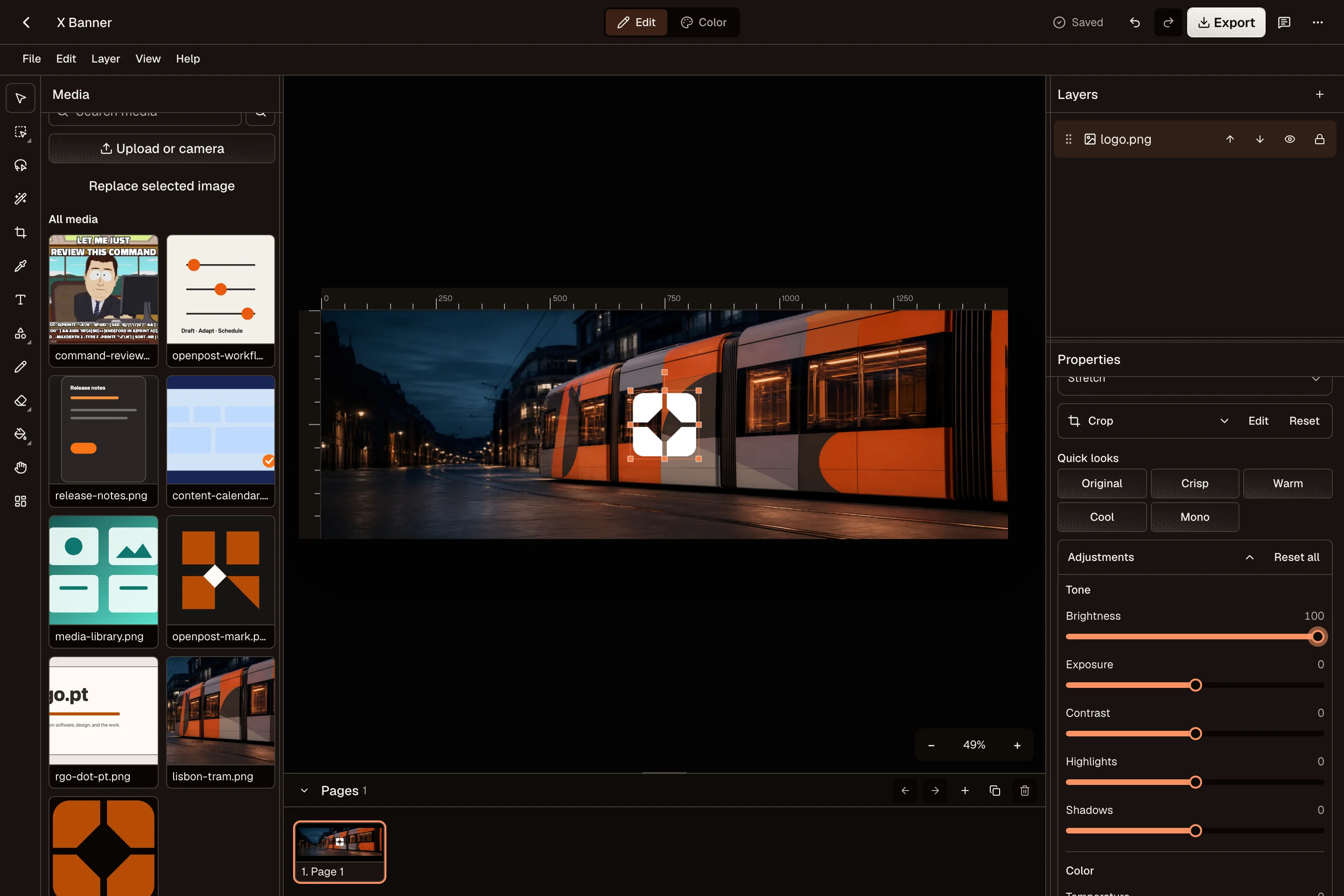
Create a product announcement, a social carousel, a Story slide, or a video thumbnail in your browser. Start with an image, a template, or a blank page, then add the text and visual details that explain your idea.
The editor keeps the design editable. Move a headline, change a photo, adjust colors, and reuse the page for the next announcement. You do not have to rebuild the whole image whenever the date, price, or product changes.
Build a carousel one page at a time
Use multiple pages to explain a process, introduce a collection, or answer a question in steps. Keep the first page clear about what the reader will get, then give each following page one job.
Reuse the same colors and type across the design. Check that the text is readable on a phone and that a product image still makes sense at a small size. Arrange the pages in the order you want before exporting.
Download the right file for the job
PNG is useful for crisp text and transparency. JPEG works well for photographs. WebP can keep a web image compact. Choose the format and size that suit the place you plan to use the result, and check that the destination accepts it.
The editor adds no watermark. Local designs and imported images stay on your device unless you choose to save them to OpenPost. Download a copy of important finished work, because clearing local browser storage can remove local projects.
Common questions
Is there a watermark or account requirement?
No. You can create and export images for free without an account or watermark.
Can I make a multi-page carousel?
Yes. Add and arrange pages, then export the images in the order you need.
Does it work on my phone?
The Image Editor supports desktop and mobile browsers. Large designs work best on a device with enough memory.