
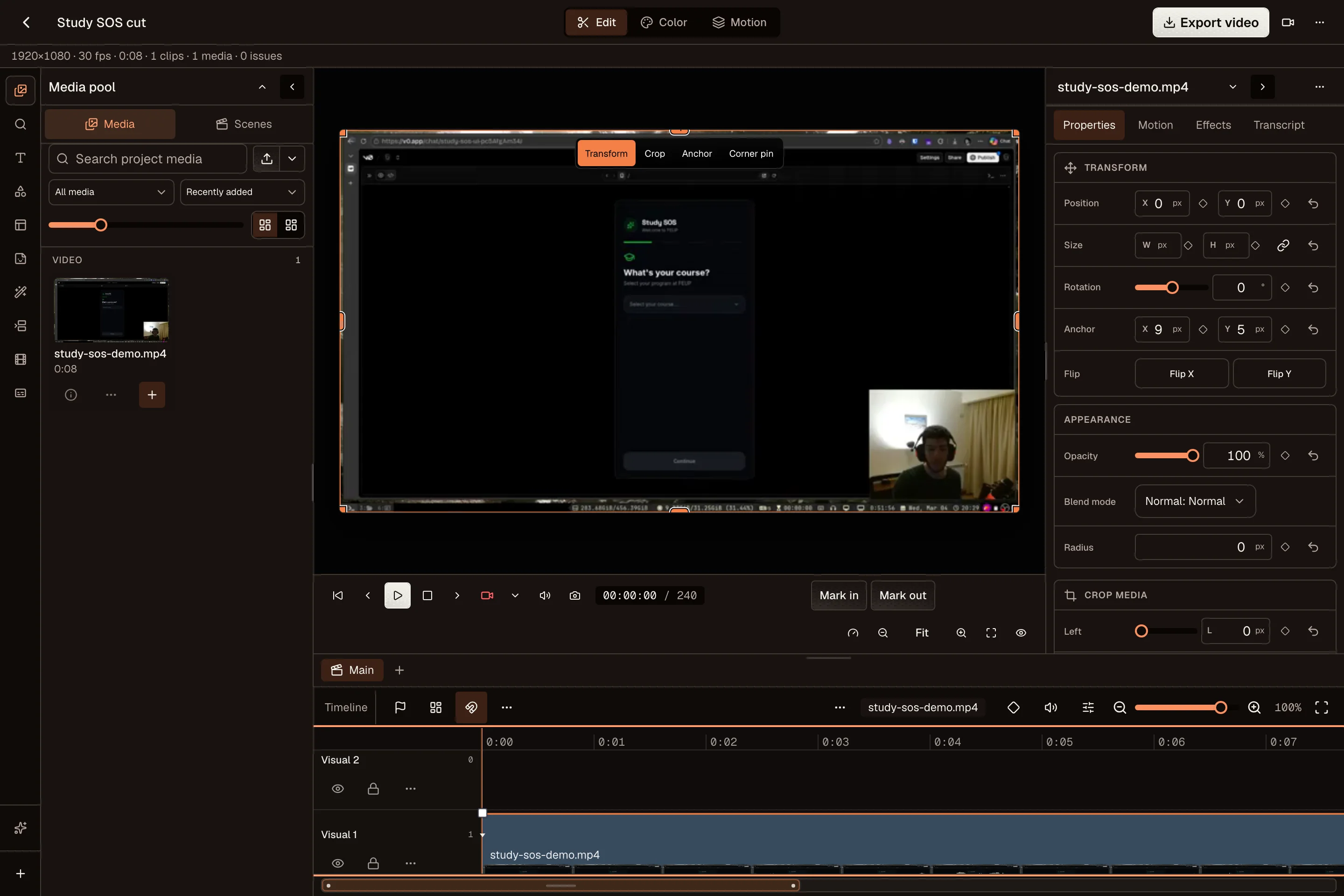
How to use it
- Open the editor and import or record your footage.
- Trim the clips, add captions, and choose the frame.
- Export the finished video to your device.
Turn a recording into a finished video
A product demo or a helpful explanation does not need a separate production setup. Record your screen, camera, or microphone, then edit the footage in your browser. Remove a pause, cut a mistake, and keep the part that explains the idea.
Use Quick Cut for a simple trim, or the full Video Editor when you need several tracks, captions, transitions, color adjustments, and audio. The editor is in beta. Desktop Chrome or Edge gives you the full editing experience.
Prepare the frame for your channel
Choose portrait for a vertical clip, square or feed portrait for a social post, or landscape for a walkthrough. Keep the important action inside the frame and check that captions remain readable at phone size.
A longer recording can become more than one piece of content. Save the project, return to it for another cut, and adjust the opening for the channel where you plan to share it. Reuse your footage without making every version identical.
Save the project as well as the export
Your exported video is the finished file you can upload or share. Your project holds the edits you may want to change later. Keep both when you expect to update a demo, fix a caption, or make another version.
Local projects, recordings, and exports stay in the folder you choose. Export options depend on your browser and device, and the social network still has its own file limits. Review the finished video, including its sound and captions, before scheduling it.
Common questions
Can I export without a watermark?
Yes. The free editor does not add a watermark or require an account.
Which browser should I use?
Use a current desktop version of Chrome or Edge for full editing and export. Mobile supports capture and project preparation; editing and export capabilities vary by device.
Can I record my screen?
Yes. The recorder supports screen, camera, and microphone capture where your browser allows it. You choose what to record and grant the required browser permissions.